Operations
How to Install Smartcars 3 for Virtual Star Alliance
How to Install Smartcars 3 for Virtual Star Alliance
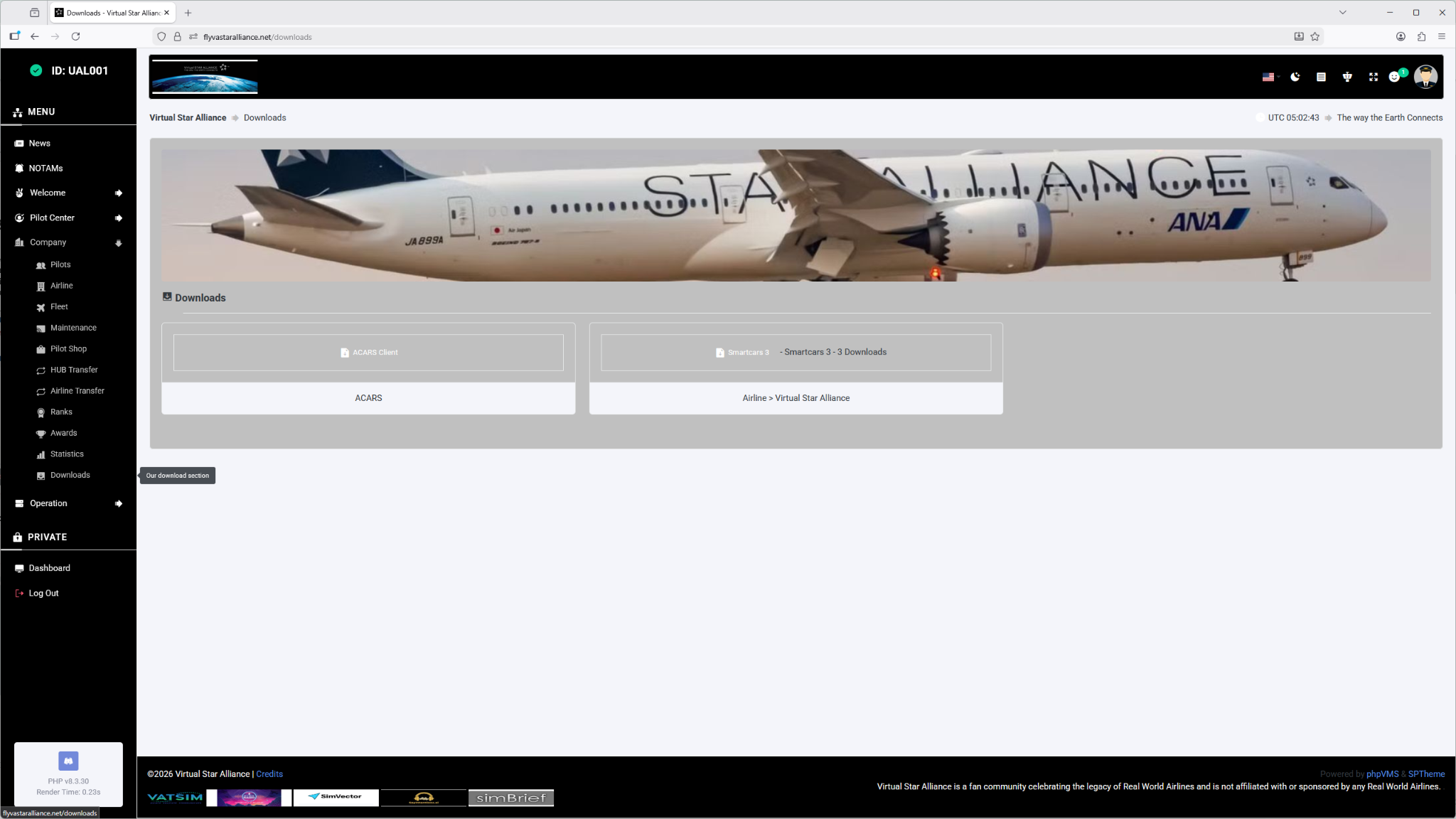
Then, navigate to Downloads.
After navigating to Downloads, click on Smartcars 3 to download it.
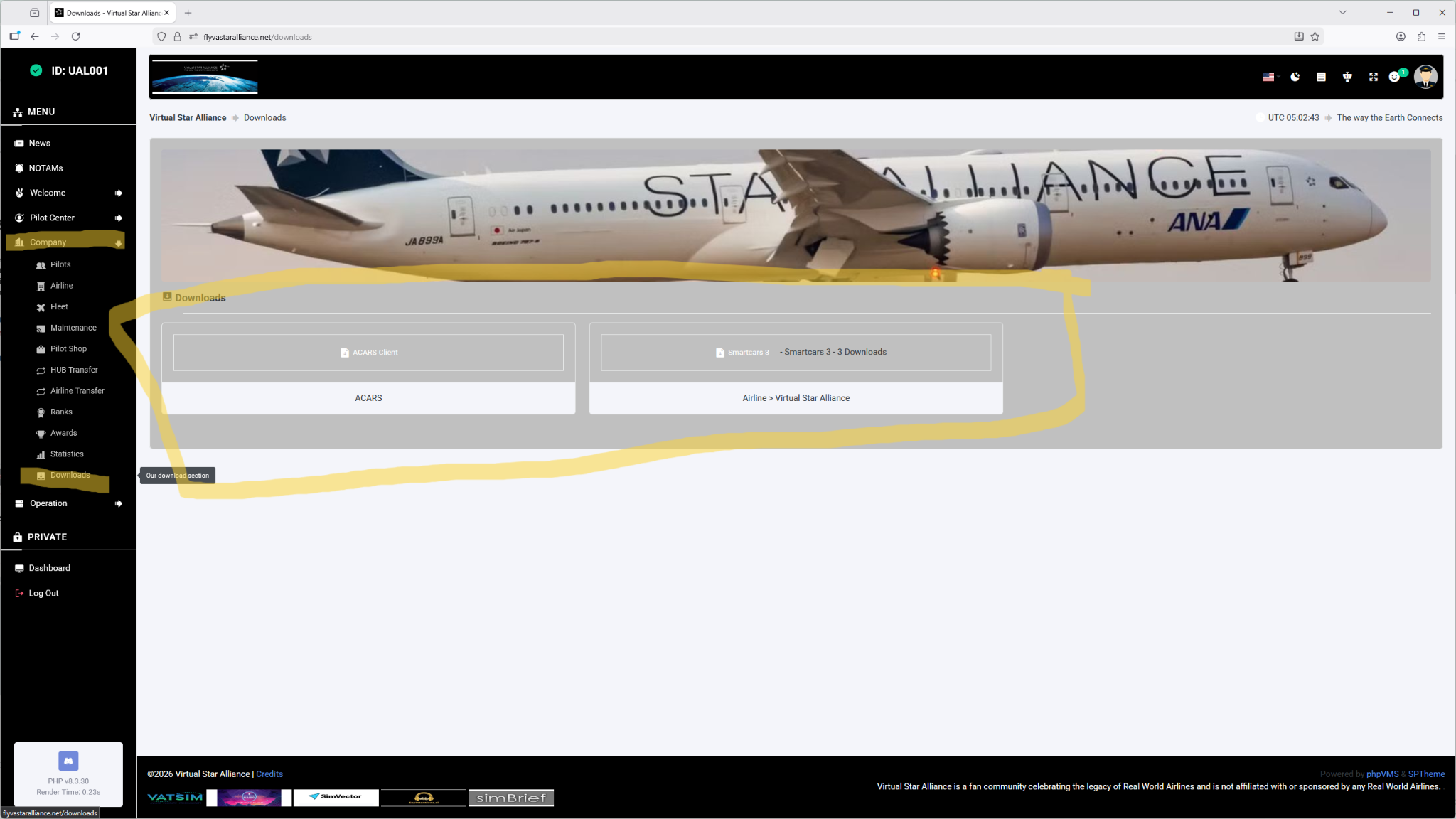
You'll also see Smartcars 3 available for download. Please be sure to read our SOP. After downloading Smartcars 3, install it on your desktop. After you install it, open Smartcars 3. It will ask for your TFDI username and password; if you don’t have one, click on skip.
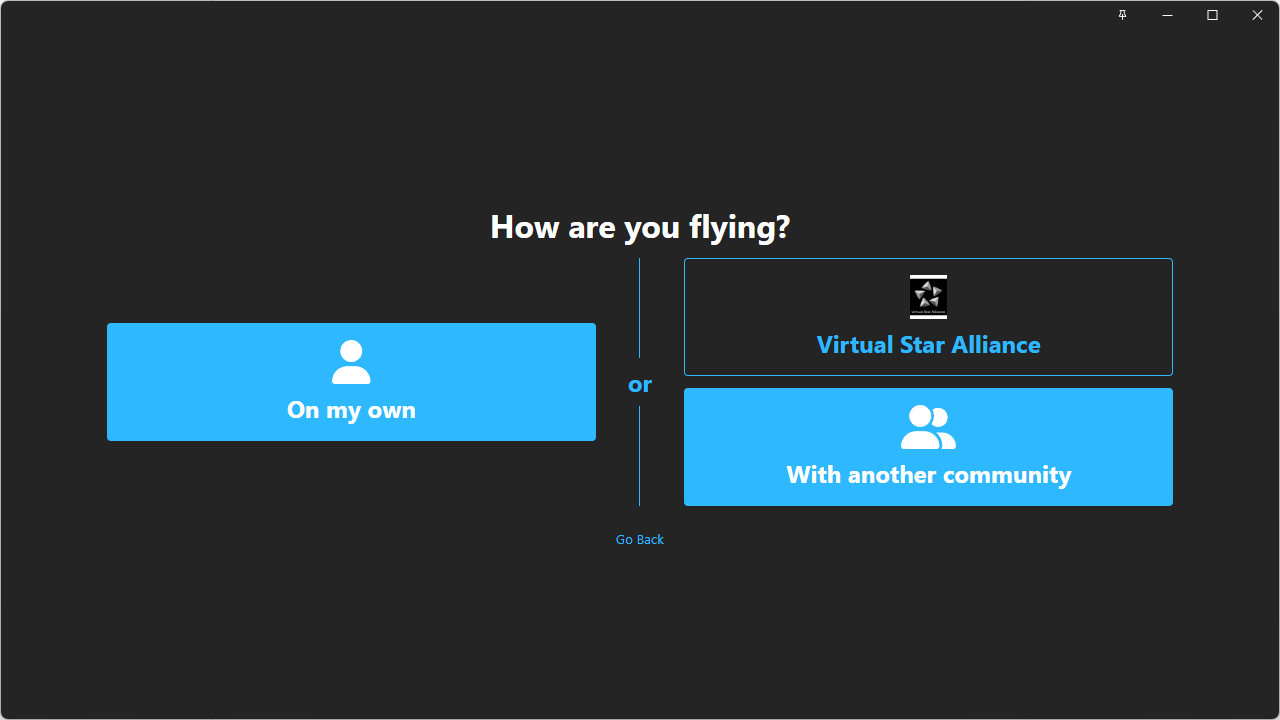
After that, click on "With another community" or search for another community; this will take you to the next screen.
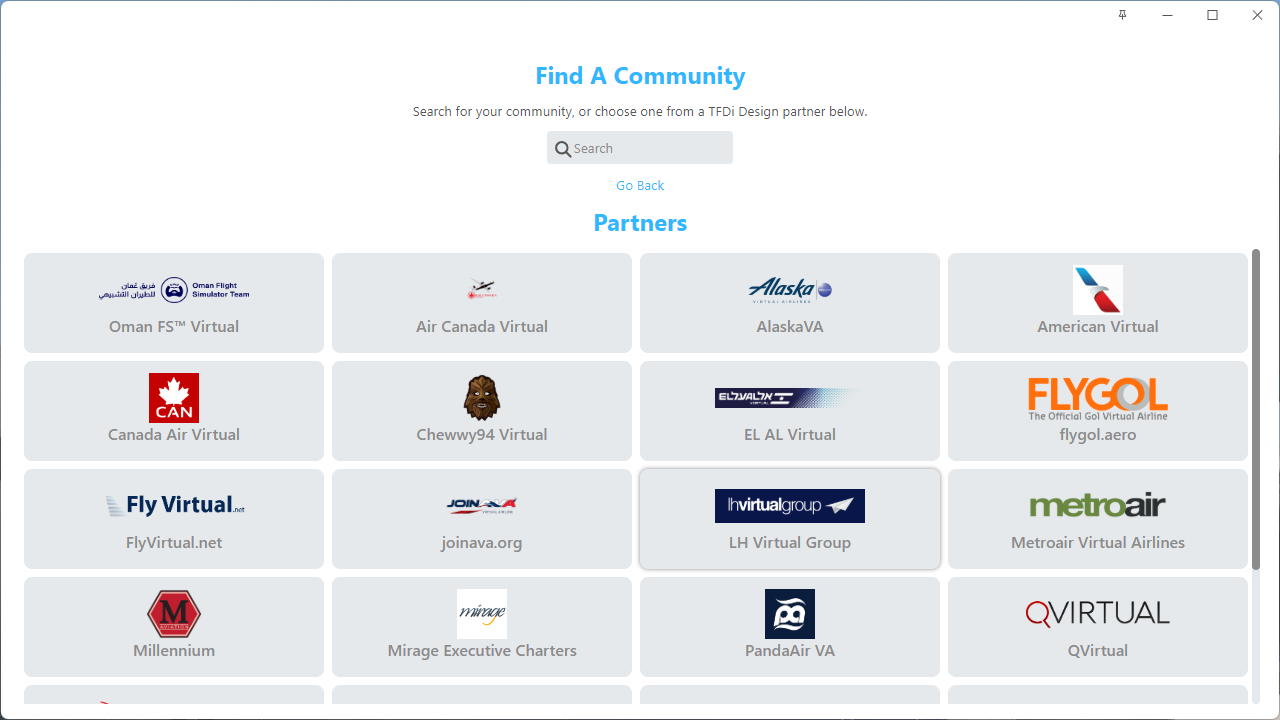
You will see a search bar at the top center of the screen. Go there and type "Virtual Star Alliances" into the search bar.
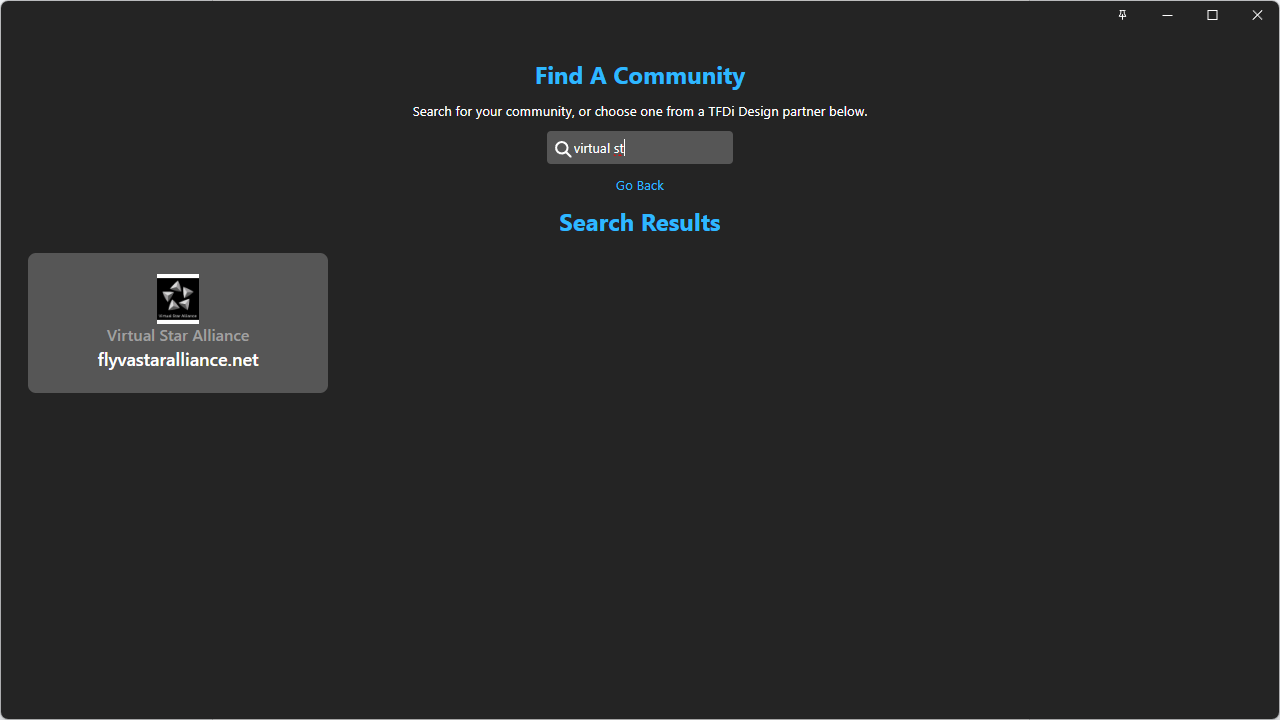
After you type "Virtual Star Alliances" into the search bar, it will appear. Click on that community to open it. It will then ask for your username and password, which is the email address and password you used when you completed the pilot application.
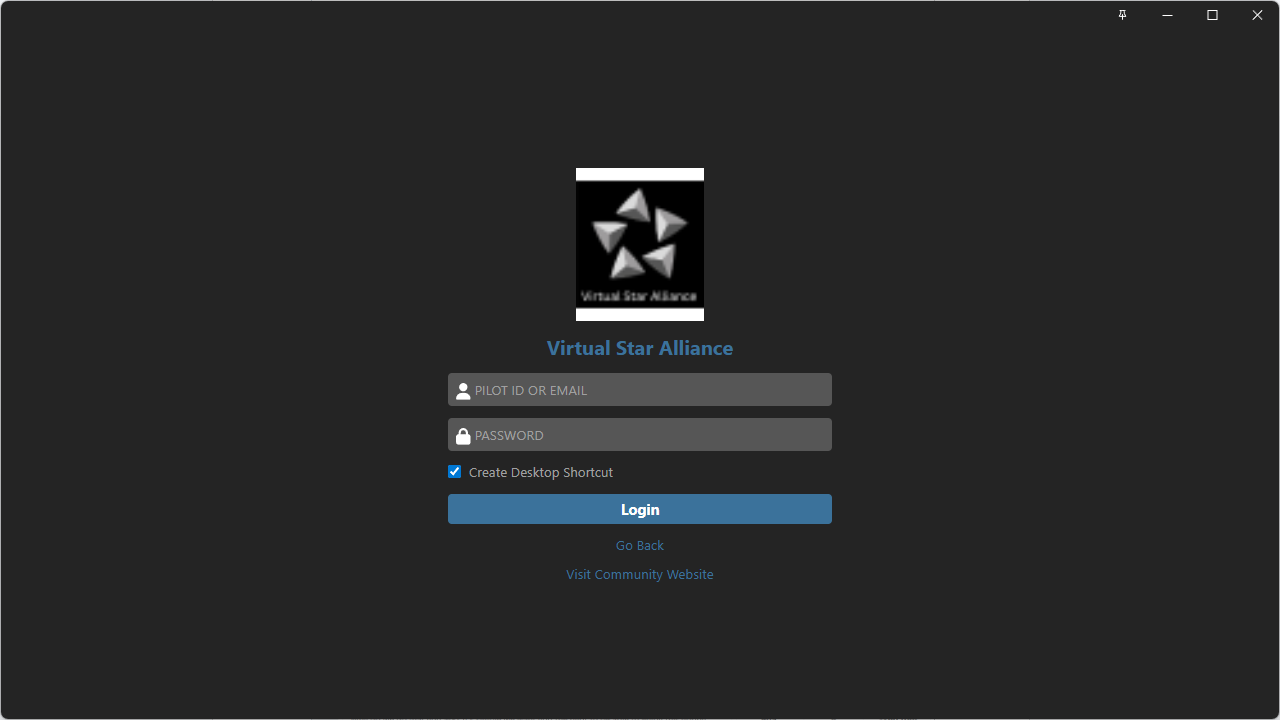
To add an icon to your desktop, click the checkbox below the password field. This will create a shortcut on your desktop if you choose. After entering your username and password, click "Login." This will log you into Smartcars 3, and it will look like this:
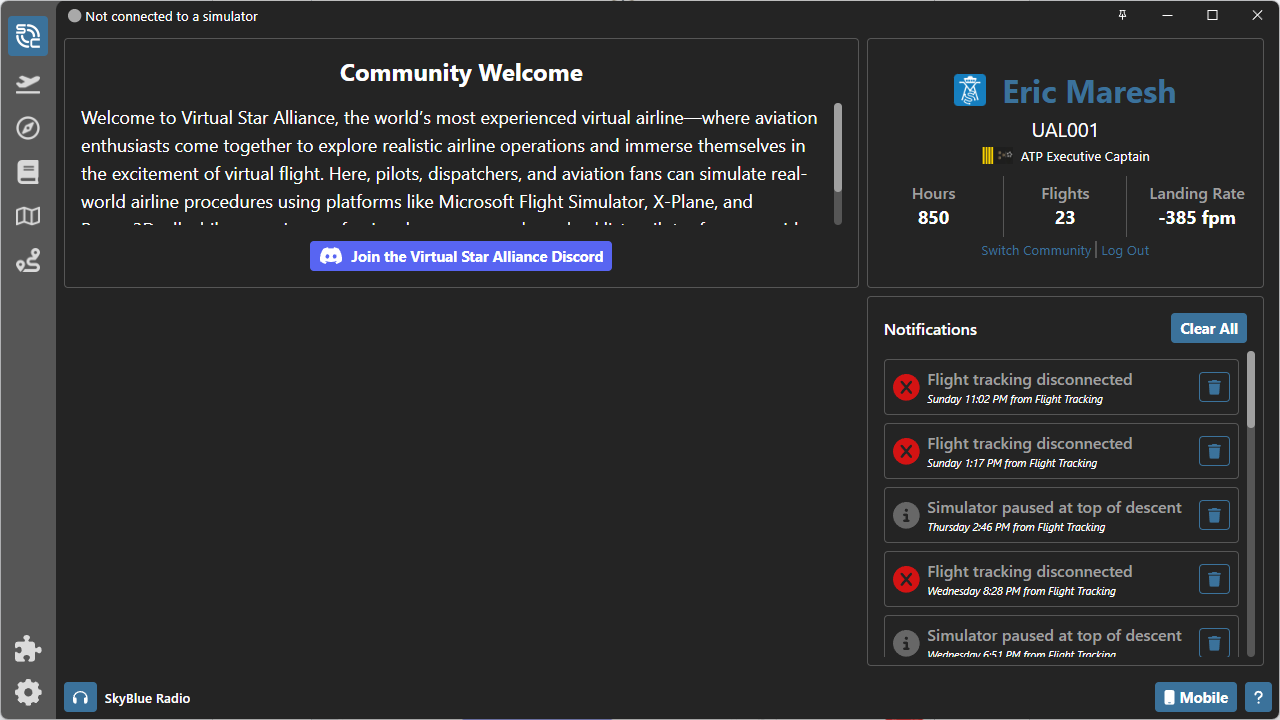
After logging in, you are ready to fly.